3D PDF
How to Enable 3D in Adobe Acrobat Reader
Why Acrobat Reader shows a 3D PDF as a static image and how to enable 3D content for one document, permanently, or only for trusted folders.
On this page
- What you need
- Why 3D is disabled
- What a 3D PDF looks like with 3D disabled
- Option 1: enable 3D for this document only
- Option 2: enable 3D for all documents
- Option 3: keep it disabled and trust folders
- If the option is locked or greyed out
- If it still does not show after enabling it
- How to check that everything works
- Frequently asked questions
In short
- Acrobat and Acrobat Reader ship with 3D content disabled by default for security reasons. When you open a 3D PDF you will see a static image and, usually, a yellow bar.
- For one document: in the yellow bar, Options, then trust the document once or always.
- For all documents: Preferences (Ctrl + K on Windows, Command + K on macOS), the Multimedia & 3D section, Enable Playing of Multimedia and 3D content. If the option is greyed out, your organisation controls it.
It is the most common question after sending a 3D PDF: “I opened it and I only see a picture.” It is almost never a problem with the file. Usually the reader does not support 3D, or Acrobat has 3D content disabled, which is its default setting. This guide explains how to enable it and what to check when it still does not work.
What you need
- Desktop Adobe Acrobat Reader or Adobe Acrobat, on Windows or macOS. Reader is free and is enough to view the model, change views and use the parts tree.
- The file downloaded and opened with Acrobat. The PDF viewers built into Chrome, Edge, Firefox or Safari do not play 3D: they show the page with the preview image.
- A computer. Phone and tablet PDF apps generally do not play 3D either.
If the recipient cannot meet these requirements, it is worth also sending some screenshots or a drawing, as explained in how to share a 3D CAD model without CAD software.
Why 3D is disabled
According to Adobe’s help on 3D models in PDFs, automatic playback of 3D content in PDFs is turned off by default because of security vulnerabilities. 3D content is a complex part of the PDF format, and Adobe chose to let users decide which documents they trust. That is why enabling it for every PDF that arrives by email is not recommended: it is better to trust specific documents or specific folders.
What a 3D PDF looks like with 3D disabled
When you open the file you will see the page with a static image where the model should be. In PDFs generated by StepPDF 3D, that image shows the model in isometric view with a “click to activate” label. According to Adobe's help, a yellow bar then appears at the top of the document with the message “Multimedia and 3D content has been disabled” and an Options button.
Option 1: enable 3D for this document only
- Open the PDF in Acrobat Reader.
- In the yellow bar, click Options.
- Choose Trust this document one time only or Trust this document always.
- If the model does not start on its own, click it. StepPDF 3D PDFs are set up to activate the model when the page opens.
This is the recommended option for files you receive occasionally: every other PDF stays protected.
Option 2: enable 3D for all documents
- Open Preferences with Ctrl + K on Windows or Command + K on macOS (shortcuts as given on Adobe’s “Enable 3D content in PDF” page).
- In the left sidebar, select Multimedia & 3D.
- Select Enable Playing of Multimedia and 3D content and click OK.
- Reopen the PDF.
These are the names used in Adobe's current help; in older Acrobat versions the section and the checkbox may be named slightly differently, for example “3D & Multimedia”. Enabling it this way is convenient if you work with 3D PDFs every day, but it affects every document you open, including ones you do not know.
Option 3: keep it disabled and trust folders
Adobe describes a middle ground: leave Enable Playing of Multimedia and 3D content cleared and, in Preferences › Security (Enhanced), add the files, folders or hosts your trusted 3D PDFs come from as privileged locations. PDFs from those locations will show 3D; everything else will still show the yellow bar.
It is a good option in companies: for example, the network folder where engineering publishes each project's 3D PDFs.
If the option is locked or greyed out
On managed computers, the IT department can disable and lock 3D through a policy. Adobe documents a Windows registry key for this (FeatureLockDown\bEnable3D). If the box is greyed out, you cannot change it from Acrobat: ask your IT department to allow 3D content or to add a trusted location.
If it still does not show after enabling it
- Did it really open in Acrobat? Many browsers open PDFs in their own viewer. Download the file and use Open with › Adobe Acrobat.
- Does the file contain 3D? A PDF exported as an image or printed to PDF loses the model. StepPDF 3D PDFs include a 3D annotation with the model in PRC format, as explained in what a 3D PDF is.
- Click the model. Some 3D PDFs only activate on click.
- Update Acrobat Reader to the current desktop version.
- Try a known file. Convert the sample assembly in the converter: if that PDF shows in 3D and yours does not, the problem is in your file.
How to check that everything works
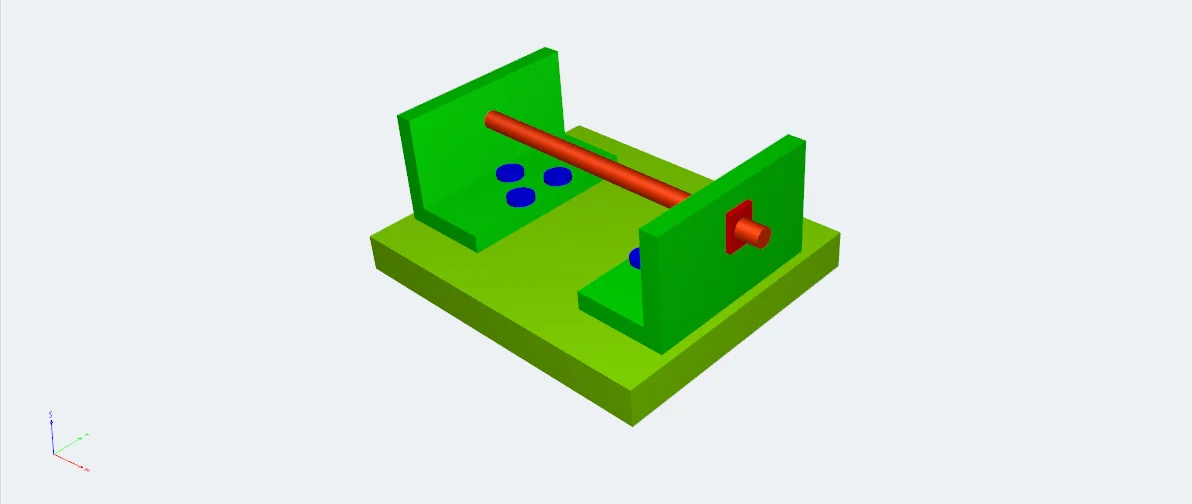
With 3D enabled, the sample PDF's model should rotate with the mouse, as in the screenshot below. The file itself asks the reader to show the 3D toolbar and the model tree panel, and it includes seven named views: isometric, front, back, top, bottom, left and right. If you see the model but not those panels, look for them by right-clicking the model.
Frequently asked questions
Is it safe to enable 3D content?
Adobe disables it by default for security reasons. The prudent approach is to enable it only for documents from known sources, by trusting a specific document or using trusted locations, rather than enabling it for every PDF.
Can I view a 3D PDF on my phone?
Generally, no. Mobile PDF apps, including Acrobat Reader for mobile according to answers in Adobe's support forums, do not play 3D content: they show the page and the preview image. Use Acrobat Reader on a computer.
Why doesn't the yellow bar appear?
3D may already be enabled, the file may not contain 3D content, or you may be viewing it in the browser instead of in Acrobat. Download it and open it with Acrobat Reader.
Do I need Acrobat Pro?
Not to view a 3D PDF: the free Acrobat Reader displays the model, the views and the parts tree. Acrobat Pro adds editing features.