Tutorials
How to Convert STEP to 3D PDF Online
What a STEP to 3D PDF conversion does, when it is worth it, how it compares with sending the STEP file, and how to do it step by step in your browser.
On this page
- What a STEP to 3D PDF conversion is
- What it is for — and when it helps
- Advantages of a 3D PDF
- Sharing a STEP vs sharing a 3D PDF
- Use cases in engineering
- Use cases with clients and suppliers
- How to convert STEP to 3D PDF with StepPDF 3D
- Which quality to choose: real data from a sample assembly
- Tips for a good result
- Limitations to be aware of
- Frequently asked questions
Quick answer
- Open the STEP to 3D PDF converter.
- Drag your
.stepor.stpfile onto the page and check the model. - Click Convert to 3D PDF, then Download 3D PDF.
- Open the PDF in Adobe Acrobat Reader and click the model to rotate it.
Converting STEP to 3D PDF turns the CAD model into a document that is easier to share and can be viewed interactively in PDF readers that support 3D content. The rest of this guide explains what actually happens during the conversion, when it is the right choice and how to get a good result.
What a STEP to 3D PDF conversion is
A STEP file describes a part or assembly with exact geometry (B-Rep surfaces and solids). A 3D PDF is a PDF document with an interactive 3D model embedded in a page. The conversion connects both worlds:
- Read the STEPSolids, surfaces, assembly structure, names and colors.
- TessellateExact surfaces are approximated with triangles at the chosen quality.
- Write PRCThe 3D data format used inside the PDF, keeping parts and colors.
- Build the PDF3D annotation, named views, cover page and preview image.
The result is not a screenshot: the PDF contains the model itself, so the person who opens it can rotate it, zoom in and explore it part by part.
What it is for — and when it helps
The conversion is useful whenever the person who needs to see a model doesn’t have — or shouldn’t need — CAD software:
- a client who must approve a design;
- a supplier’s sales or purchasing team reviewing a quote request;
- a manager or colleague reviewing a design from another department;
- assembly and quality teams on the shop floor;
- documentation that has to stay readable without the original CAD system.
Advantages of a 3D PDF
- Opens in a free reader: Adobe Acrobat Reader displays the interactive model.
- Everything in one file: model, views and document pages.
- Easy to handle: email it, attach it to a quote, upload it to a portal, archive it.
- Structure preserved: parts appear with their names in the model tree and can be hidden or isolated.
- Doesn’t hand over the exact CAD geometry, because the model is tessellated — useful, although not a security feature.
Sharing a STEP vs sharing a 3D PDF
| STEP file | 3D PDF | |
|---|---|---|
| Recipient needs | CAD software or a STEP viewer | Adobe Acrobat Reader (or another 3D-capable reader) |
| Geometry | Exact (B-Rep) | Triangle approximation |
| Good for manufacturing | Yes — CAM, quoting, inspection | No — for viewing and understanding |
| Can be reused as CAD | Yes | Not practically |
| Extra pages and notes | No | Yes |
| Best audience | Engineers, suppliers, machine shops | Clients, managers, buyers, shop floor |
In practice they are complementary: the STEP goes to whoever needs to make the part, the 3D PDF to whoever needs to understand it. A longer comparison, including screenshots and online viewers, is in how to share a 3D CAD model without CAD software.
Use cases in engineering
- Design reviews with people outside the CAD team, who can check the model on their own time.
- Engineering change requests: attach a navigable model of the new revision.
- Assembly and work instructions: the model tree lets operators hide parts and see how an assembly goes together.
- Documentation and archives that must remain readable without a CAD license.
Use cases with clients and suppliers
- Client approvals: the client can look at the product from every angle instead of a few fixed images.
- Proposals and quotes: add the 3D model to your offer document.
- Requests for quotation: send the STEP for the engineer who prepares the quote and a 3D PDF for everyone else involved.
- Purchasing: buyers can identify the part without asking engineering for screenshots.
How to convert STEP to 3D PDF with StepPDF 3D
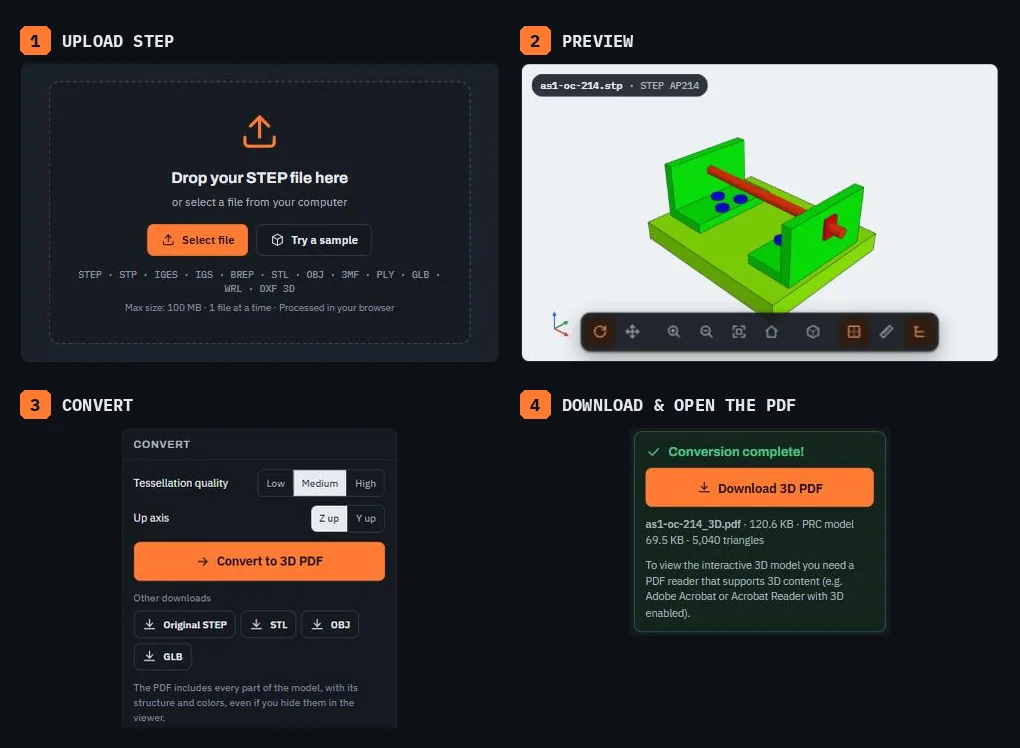
1. Load your file
Open the converter and drag your .step or .stp file onto the upload area, or click Select file. It has been tested with STEP AP203 and AP214 (AP242 is accepted but not yet tested with real exports), as well as IGES and BREP; STL, OBJ, 3MF, PLY and GLB are accepted as meshes. The maximum size is 100 MB, one file at a time. If you just want to see how it works, use Try a sample.
2. Check the model
The model appears in the 3D preview. The side panel shows the STEP protocol, units, overall dimensions and the number of components and bodies, which is a quick way to catch a wrong export (wrong units, missing parts) before you send anything. Hiding parts in the preview doesn’t remove them: the PDF always includes the whole model.
3. Choose the options
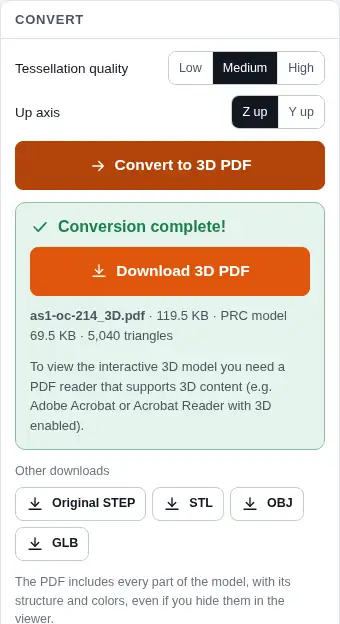
- Tessellation quality (Low, Medium, High): how finely curved surfaces are approximated. Higher means smoother curves and a bigger file.
- Up axis (Z up or Y up): which axis points up, so the model isn’t lying on its side.
4. Convert and download
Click Convert to 3D PDF. When it finishes, click Download 3D PDF. The same panel also lets you download the original STEP or mesh versions (STL, OBJ, GLB). It shows the PDF size, the size of the PRC model inside it and the triangle count.
5. Open the result
Open the PDF in Adobe Acrobat or Acrobat Reader. If a yellow bar says 3D content is disabled, choose to trust the document (see Adobe’s help). Click the model to activate it.
What the PDF contains
- A technical cover page with the model information and the interactive 3D area.
- The model in PRC format (ISO 14739-1), with the assembly structure, part names and colors.
- Seven named views: isometric, front, back, top, bottom, left and right.
- For assemblies, a page with the list of components.
- A preview image, shown by readers that can’t display 3D.
Which quality to choose: real data from a sample assembly
Tessellation quality decides how many triangles are used to approximate curved surfaces. So the choice is not made blindly, we converted the same assembly (as1-oc-214.stp, 18 parts, 200 × 150 × 84 mm) at all three qualities and measured the result.
Test conditions: an automated Chromium browser on a server with a 2.8 GHz Xeon processor, about 8 GB of RAM and software rendering; three runs per quality. Timings belong to that machine and should not be taken as universal; on that machine the PRC model and triangle counts repeated exactly between exports. The total PDF size can vary by about 1 KB between computers or interface languages, because the cover page and the preview image are generated in each browser.
| Quality | Triangles | 3D PDF | Conversion (median) | Ø10 mm rod: points on the outline | Max. deviation on the rod |
|---|---|---|---|---|---|
| Low | 2,892 | 92,157 bytes | 1.12 s | 20 | ≈ 0.097 mm |
| Medium | 5,040 | 122,551 bytes | 1.75 s | 32 | ≈ 0.033 mm |
| High | 8,676 | 180,841 bytes | 1.52 s | 60 | ≈ 0.009 mm |
True Ø10 mm circle (dashed) and outline of the exported mesh (solid)
What this test shows:
- Size grows with quality: from Low to High, triangles triple and the PDF doubles. Flat faces do not change; the curved surfaces are what grows.
- Time barely changed: the differences between qualities (1.1 to 1.8 s) are within the variation between runs. On a model with many curved surfaces the difference will be noticeable.
- The deviation is small even at Low: on the Ø10 mm rod, the mesh is at most a tenth of a millimetre away from the true circle. It shows as facets on edges when you zoom in, not in the overall dimensions.
A practical rule: start with Medium. Use High if the model has visible fillets or curves that look faceted, and Low if the assembly is large, the PDF is too heavy to email or processing gets close to the 3-minute limit. Whatever the quality, a 3D PDF is for viewing: manufacturing dimensions come from the STEP file.
Tips for a good result
- Pick the quality for the model: Low for large assemblies with many parts, High for small parts where curved surfaces matter (the data in the previous section is a useful reference).
- Export STEP with colors: AP214 and AP242 can carry per-part and per-face colors; the original AP203 cannot, so the model arrives gray.
- Name your parts in CAD: those names appear in the PDF’s model tree.
- Check units and orientation in the preview before converting.
- Open the PDF yourself in Acrobat Reader before sending it.
Limitations to be aware of
- The 3D model is tessellated (triangles), not exact B-Rep geometry. Use the STEP for manufacturing.
- PMI and 2D drawings are not included: the PDF carries geometry, structure and colors.
- Native CAD formats (SolidWorks, CATIA, Inventor, Creo, NX…) must be exported to STEP first.
- Files up to 100 MB; very large assemblies depend on your device’s memory, and processing stops after 3 minutes.
- The recipient needs a 3D-capable PDF reader — see what a 3D PDF is and how it works.
Frequently asked questions
Is the conversion free?
Yes. The converter is free to use and doesn’t require an account.
Is my STEP file uploaded to a server?
No. The file is read and converted inside your browser using WebAssembly. It stays in the tab’s memory and is cleared when you remove it, load another file or close the page.
Which STEP versions are supported?
It has been tested with STEP AP203 and AP214 files, both single parts and assemblies, with the .step or .stp extension. AP242 and .stpz are also accepted but have not yet been tested with real files; according to OpenCascade, its AP242 support is partial.
Can I convert a SolidWorks or Inventor file directly?
No. Native formats such as .sldprt, .ipt or .catpart must be exported to STEP from the original CAD program first. Then convert the STEP.
Can I convert STL, OBJ or IGES to 3D PDF too?
Yes. IGES and BREP are read like STEP; STL, OBJ, 3MF, PLY and glTF/GLB are converted as meshes. Mesh formats have no units, so millimeters are assumed.
Why does the recipient see only an image of the model?
They are opening the PDF in a reader without 3D support (a web browser, macOS Preview or a phone app), or 3D is disabled in Acrobat. See how to open a 3D PDF correctly.