3D PDF
What Is a 3D PDF and How Does It Work?
A 3D PDF is a regular PDF document with an interactive 3D model inside the page. How it works, what it is used for, how to open it correctly and which readers support it.
On this page
- 3D PDF vs a regular PDF
- How it works inside the file
- Real example: what is inside a 3D PDF
- What you can do with the model
- What 3D PDFs are used for
- Advantages of sharing a 3D PDF
- How to open a 3D PDF correctly
- Which readers support 3D PDF?
- Limitations
- How to turn a STEP file into a 3D PDF
- Frequently asked questions
In short
- A 3D PDF is a normal PDF file that contains an interactive 3D model inside one of its pages.
- In a compatible reader such as Adobe Acrobat Reader, you can rotate the model, zoom in, switch views and show or hide parts.
- It is widely used to share CAD models with people who don’t have CAD software.
3D PDF vs a regular PDF
A regular PDF contains flat pages: text, vector drawings and images. Whatever you see is fixed. A 3D PDF keeps all of that and adds a region on the page where a three-dimensional model lives. When you click it, the model becomes interactive.
| Regular PDF | 3D PDF | |
|---|---|---|
| Content | Text, 2D drawings, images | The same, plus an embedded 3D model |
| Point of view | Fixed | Free: rotate, zoom, pan |
| Assemblies | Only as pictures | Model tree to show or hide parts |
| Readers | Any PDF reader | Readers with 3D support (e.g. Adobe Acrobat Reader) |
| In other readers | — | The page and a preview image |
How it works inside the file
3D support has been part of the PDF format since the mid-2000s. The PDF specification (ISO 32000; current version: ISO 32000-2:2020) defines a special kind of page element, the 3D annotation. Put simply, a 3D PDF is built like this:
- PDF pageNormal content: title, text, a cover sheet, tables.
- 3D annotationA rectangle on the page reserved for the model.
- 3D data streamThe model itself, in PRC or U3D format.
- Views & settingsNamed camera views, lighting, background, when to activate.
- Preview imageShown by readers that can’t display 3D.
The 3D data is stored in one of two formats:
- PRC (Product Representation Compact, ISO 14739-1) — designed for CAD data. It keeps the product structure (assemblies and part names), colors and materials, and can hold triangle meshes or exact geometry.
- U3D (Universal 3D, ECMA-363) — an older mesh format designed mainly for visualization.
The document also stores predefined views (for example isometric, front, top), the lighting and background, and an activation rule — whether the 3D starts when the page opens or when the user clicks it.
Real example: what is inside a 3D PDF
To see these pieces in a concrete file, we converted the sample assembly as1-oc-214.stp with StepPDF 3D and opened the resulting PDF with PDF analysis tools (pikepdf and Poppler). This is what the file generated at medium quality contains:
| Element | What we found |
|---|---|
| Version and pages | PDF 1.7, 2 landscape A4 pages (841.9 × 595.3 points) |
| Page 1 | Technical cover with file, format, units, dimensions, components and triangles, plus the 3D annotation (a 774 × 371 point rectangle) |
| Page 2 | Model structure list: 23 rows, from the root assembly down to each nut and bolt |
| 3D data | A /PRC stream of 71,133 bytes; its first bytes are the PRC signature |
| Saved views | 7: Isometric, Front, Back, Top, Bottom, Left and Right (isometric is the default) |
| Activation | 3D activates when the page opens and deactivates when it closes; the 3D toolbar and the model tree panel are shown |
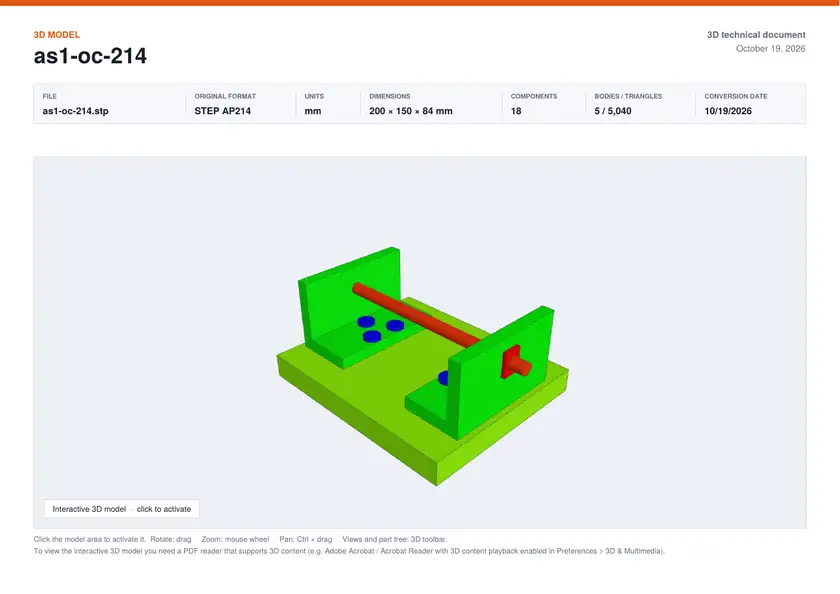
| Preview image | A static appearance of the 3D area with the model in isometric view and a “click to activate” label |
The size of the PRC stream depends on the tessellation quality chosen when converting. With the same assembly:
| Quality | Triangles | PRC stream | Whole PDF | Share of the PDF that is 3D model |
|---|---|---|---|---|
| Low | 2,892 | 40,709 bytes | 92,157 bytes | 44% |
| Medium | 5,040 | 71,133 bytes | 122,551 bytes | 58% |
| High | 8,676 | 129,454 bytes | 180,841 bytes | 72% |
The rest of the file (about 51 KB in all three cases) is the cover, the structure page, fonts and the preview image. In a small model like this one the fixed part weighs almost as much as the model; in a large assembly the PRC stream dominates the size. The figures were measured with the Spanish interface; the English interface produced a 122,395-byte PDF with an identical 71,133-byte PRC stream, and other versions of the site can differ by a few hundred to a few thousand bytes because of the cover text and the preview image, which each browser generates.
The preview image is what someone sees when they open the file in a reader without 3D support. This is the first page of the same PDF rendered with Poppler, a PDF engine that does not play 3D:
What you can do with the model
- Rotate: drag with the mouse to turn the model around.
- Zoom: mouse wheel, or the zoom tool in the 3D toolbar.
- Pan: move the model within the view.
- Views: jump to the predefined views stored in the file, or reset to the default view.
- Model tree: see the list of parts, hide, isolate or make parts transparent.
Depending on the version of Acrobat, additional tools such as cross sections or 3D measurements may also be available.
What 3D PDFs are used for
Engineering
Design reviews with people outside the CAD team, sharing concepts with other departments and attaching a navigable model to engineering change requests.
Manufacturing
Assembly and work instructions on the shop floor, quality inspection references and helping operators understand how parts fit together.
Communication with clients
Design approvals, proposals and quotes where the client can look at the product from every angle instead of relying on a handful of images.
Communication with suppliers
Requests for quotation, alongside the STEP file and the drawing, so everyone involved in the quote can understand the part — not just the person with CAD.
Advantages of sharing a 3D PDF
- Familiar format: emailing, filing or printing a PDF is routine in any office. The difference is that viewing the model in 3D requires a compatible reader; anywhere else, people will only see the page with a static image.
- No CAD license needed on the receiving side.
- One self-contained file with the model, views and any documentation pages.
- Less exposure than a STEP: a tessellated model is not the exact CAD geometry (although, as explained in our guide to sharing CAD models, it is not a security measure).
How to open a 3D PDF correctly
- Open it in Adobe Acrobat or Acrobat Reader on a computer. If it opens in your web browser, download it and use Open with › Adobe Acrobat.
- Enable 3D if Acrobat asks. A yellow bar may say that 3D content has been disabled. Choose Options › Trust this document one time only (or always). To change it permanently: Preferences › Multimedia & 3D › Enable Playing of Multimedia and 3D content.
- Click the model to activate it, if it doesn’t start automatically.
- The exact menu names change between Acrobat versions. The detailed guide, including what to do if the option is locked, is in how to enable 3D in Adobe Acrobat Reader.
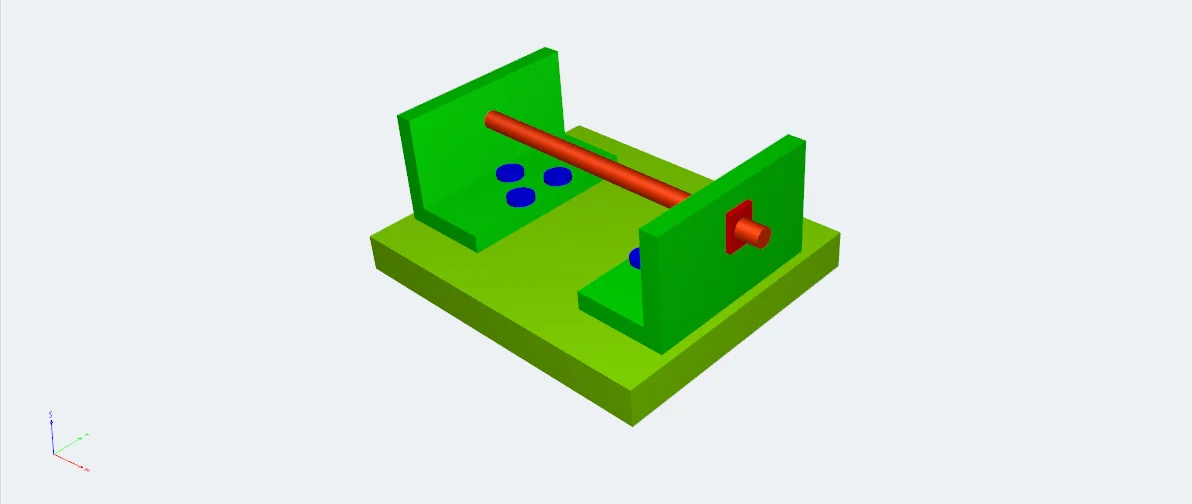
- Use the 3D toolbar and the model tree to change views and explore parts. Right-clicking the model shows more options.
Which readers support 3D PDF?
| Reader | Interactive 3D |
|---|---|
| Adobe Acrobat / Acrobat Reader (desktop) | Yes — may need 3D to be enabled first |
| Foxit PDF Reader (desktop) | Yes in current desktop versions; support can vary by version |
| Built-in PDF viewers of Chrome, Edge, Firefox and Safari | No — page and preview image only |
| macOS Preview | No — preview image only |
| Most mobile PDF apps | No — preview image only |
Support can change between versions and platforms. If in doubt, check your reader’s documentation.
Limitations
- Reader dependency: the recipient must use a 3D-capable reader; everyone else sees a static preview.
- Disabled by default in recent Acrobat versions, which confuses people the first time.
- Usually an approximation: most 3D PDFs contain triangles, fine for viewing but not for manufacturing or precise measurement.
- File size grows with the complexity of the model; very large assemblies produce heavy PDFs.
- Not a drawing: without PMI, a 3D PDF doesn’t carry the tolerances production needs.
How to turn a STEP file into a 3D PDF
If you have a STEP file, you can create a 3D PDF in the browser with the StepPDF 3D converter:
- Load your
.stepor.stpfile (IGES, STL, OBJ, 3MF and other formats also work). - Check the model in the 3D preview and choose the tessellation quality.
- Click Convert to 3D PDF and download the file.
The result is a PDF with the model in PRC format — assembly structure, part names, colors, seven named views (isometric, front, back, top, bottom, left and right) and a technical cover page. The conversion runs on your device; the file is not uploaded to a server. The step-by-step guide is in how to convert STEP to 3D PDF online.
Frequently asked questions
Can I open a 3D PDF in Chrome, Edge or Firefox?
The built-in PDF viewers of web browsers don’t display 3D content: you will see the page and a static preview image. Download the file and open it in Adobe Acrobat or Acrobat Reader.
Why is 3D disabled when I open the file in Acrobat?
Recent versions of Acrobat and Acrobat Reader disable 3D content by default for security reasons. Choose Options › Trust this document in the yellow bar, or enable Preferences › Multimedia & 3D › Enable Playing of Multimedia and 3D content. Only do this for files from sources you trust.
What is the difference between PRC and U3D?
Both are formats for the 3D data inside a PDF. U3D (ECMA-363) is an older mesh-oriented format designed mainly for visualization. PRC (ISO 14739-1) is better suited to CAD: it keeps the assembly structure, part names and colors, and can store either triangles or exact geometry.
Can I convert a 3D PDF back to STEP?
Usually not in a useful way. Most 3D PDFs contain a triangle approximation, not the exact CAD geometry, so you could at best recover a mesh. Keep the original STEP or CAD file as the master.
Can a 3D PDF replace a technical drawing?
Not by itself in most companies. A 3D PDF is excellent for understanding a design, but manufacturing still relies on dimensions and tolerances, usually in a 2D drawing or as PMI in the CAD model. Many teams send both.